> ## Documentation Index
> Fetch the complete documentation index at: https://docs.oumi.ai/llms.txt
> Use this file to discover all available pages before exploring further.
# IMPORTING MODELS
> Bring your own model into Oumi to evaluate and deploy it
Importing a model brings external weights into your project so you can evaluate and deploy them just like a model trained in Oumi. You can pull from a HuggingFace repo or from a presigned S3 URL.
***
## WHEN TO IMPORT A MODEL
Import a model when you want to:
* Evaluate an open-source or third-party model alongside your own
* Deploy a model you trained outside of Oumi
* Bring a fine-tuned checkpoint into a project to serve it
***
## HOW TO IMPORT A MODEL
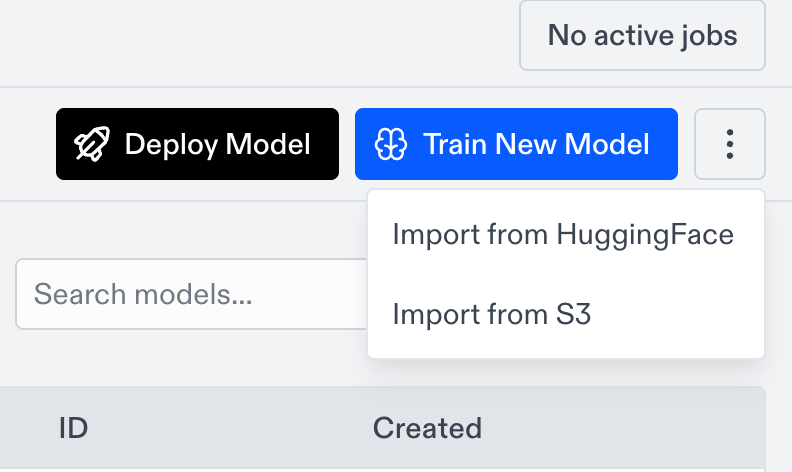
1. Go to the **Models** page.
2. Click the **More actions** button (the three dots) at the top right.
3. Choose **Import from HuggingFace** or **Import from S3**.
 ### Import from HuggingFace
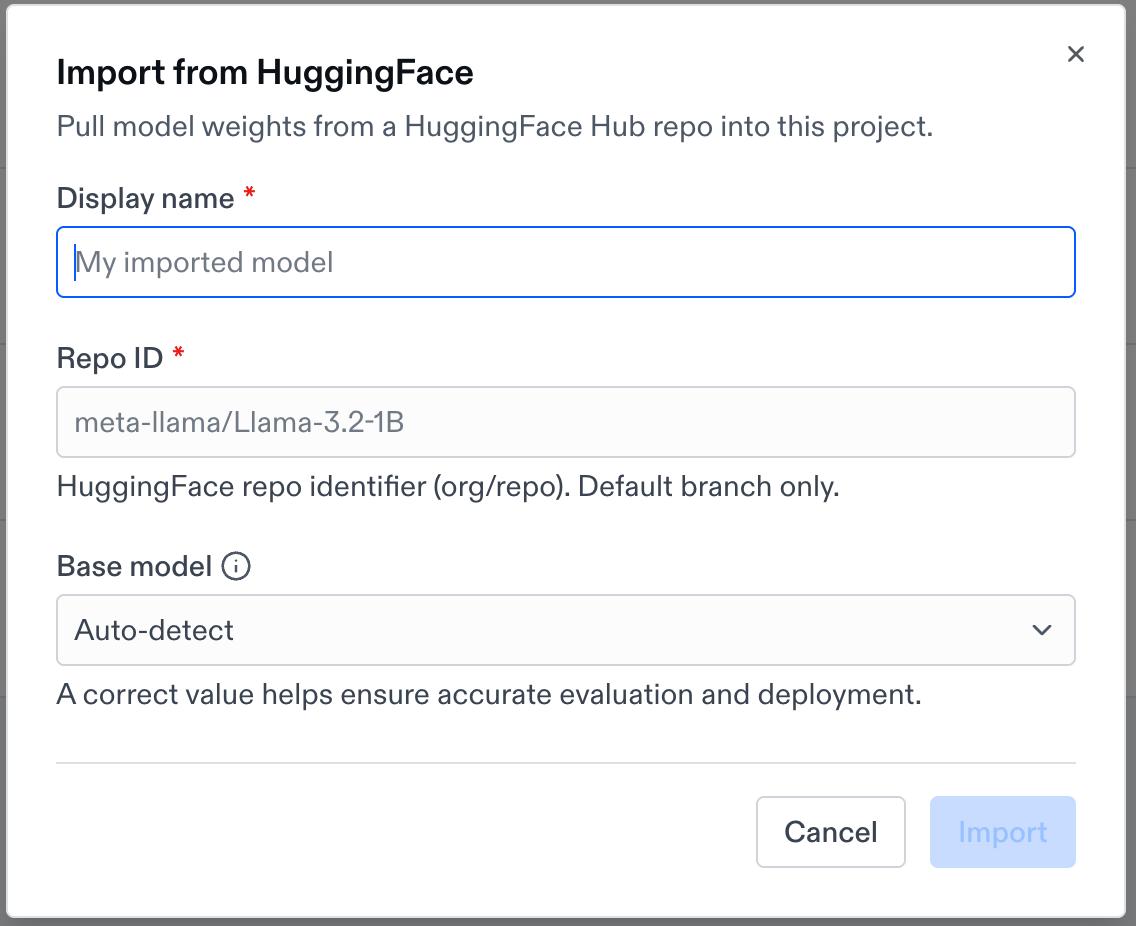
Pull model weights from a HuggingFace Hub repo into your project.
1. Enter a **Display name** for the model.
2. Enter the **Repo ID** in `org/repo` format, for example `meta-llama/Llama-3.2-1B`.
3. Set the **Base model** (see [Set the base model](#set-the-base-model)).
4. Click to start the import.
### Import from HuggingFace
Pull model weights from a HuggingFace Hub repo into your project.
1. Enter a **Display name** for the model.
2. Enter the **Repo ID** in `org/repo` format, for example `meta-llama/Llama-3.2-1B`.
3. Set the **Base model** (see [Set the base model](#set-the-base-model)).
4. Click to start the import.
 Only the repo's default branch is imported. For gated or private repos, add a HuggingFace token to your project first so Oumi can access the weights.
### Import from S3
Pull a model artifact from a presigned S3 URL into your project.
1. Enter a **Display name** for the model.
2. Paste the **Presigned URL** to your model artifact.
3. Set the **Base model** (see [Set the base model](#set-the-base-model)).
4. Click to start the import.
Only the repo's default branch is imported. For gated or private repos, add a HuggingFace token to your project first so Oumi can access the weights.
### Import from S3
Pull a model artifact from a presigned S3 URL into your project.
1. Enter a **Display name** for the model.
2. Paste the **Presigned URL** to your model artifact.
3. Set the **Base model** (see [Set the base model](#set-the-base-model)).
4. Click to start the import.
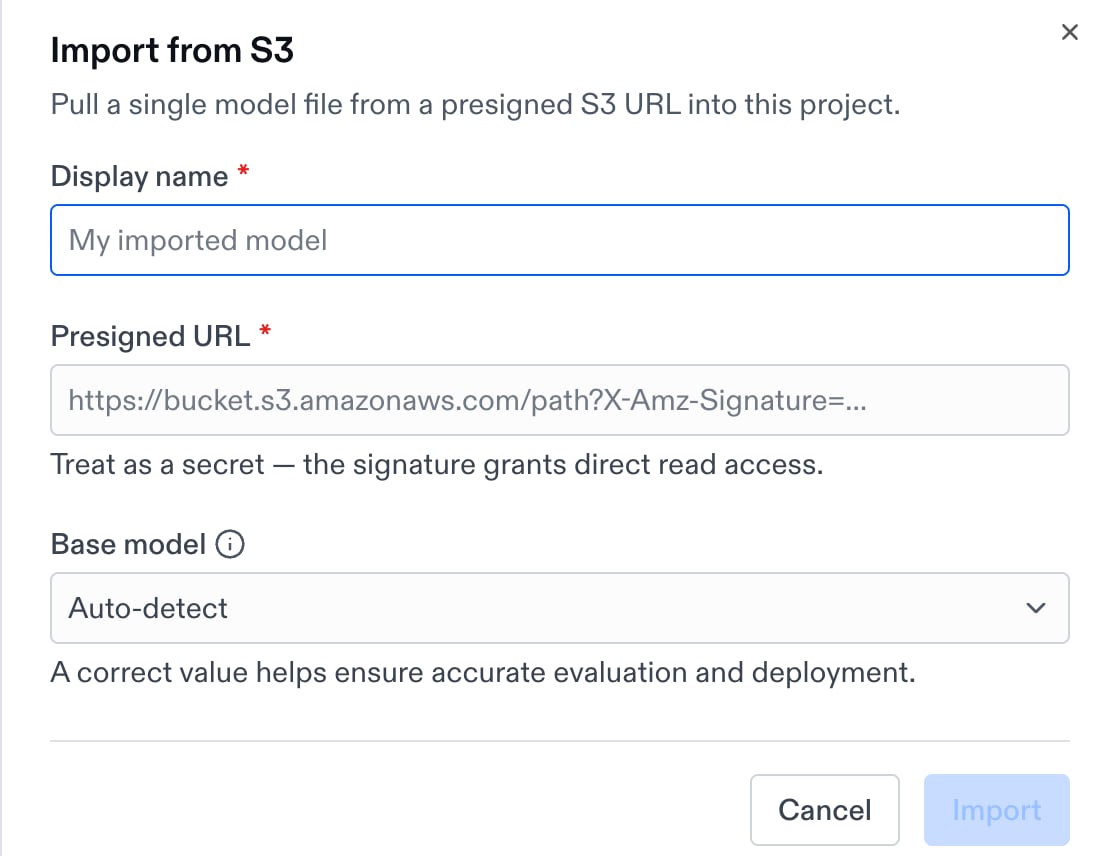 Treat the presigned URL as a secret. The signature grants direct read access to your file.
The URL can point to a single weight file or an archive (`.zip`, `.tar`, `.tar.gz`), up to 2 TB uncompressed and 100,000 files.
***
## SET THE BASE MODEL
The **base model** tells Oumi which model your weights derive from. Oumi uses it to apply the correct chat template and to enable accurate evaluation and deployment, so setting it right matters.
* For HuggingFace imports, Oumi auto-detects the base model from the Repo ID. Leave it on **Auto-detect** unless your weights derive from a different model.
* For S3 imports, set the base model yourself. Use the HuggingFace ID of the model your weights are based on, for example `Qwen/Qwen3-0.6B`.
* If your base model isn't in the list, choose **Other** and type its HuggingFace ID.
Treat the presigned URL as a secret. The signature grants direct read access to your file.
The URL can point to a single weight file or an archive (`.zip`, `.tar`, `.tar.gz`), up to 2 TB uncompressed and 100,000 files.
***
## SET THE BASE MODEL
The **base model** tells Oumi which model your weights derive from. Oumi uses it to apply the correct chat template and to enable accurate evaluation and deployment, so setting it right matters.
* For HuggingFace imports, Oumi auto-detects the base model from the Repo ID. Leave it on **Auto-detect** unless your weights derive from a different model.
* For S3 imports, set the base model yourself. Use the HuggingFace ID of the model your weights are based on, for example `Qwen/Qwen3-0.6B`.
* If your base model isn't in the list, choose **Other** and type its HuggingFace ID.
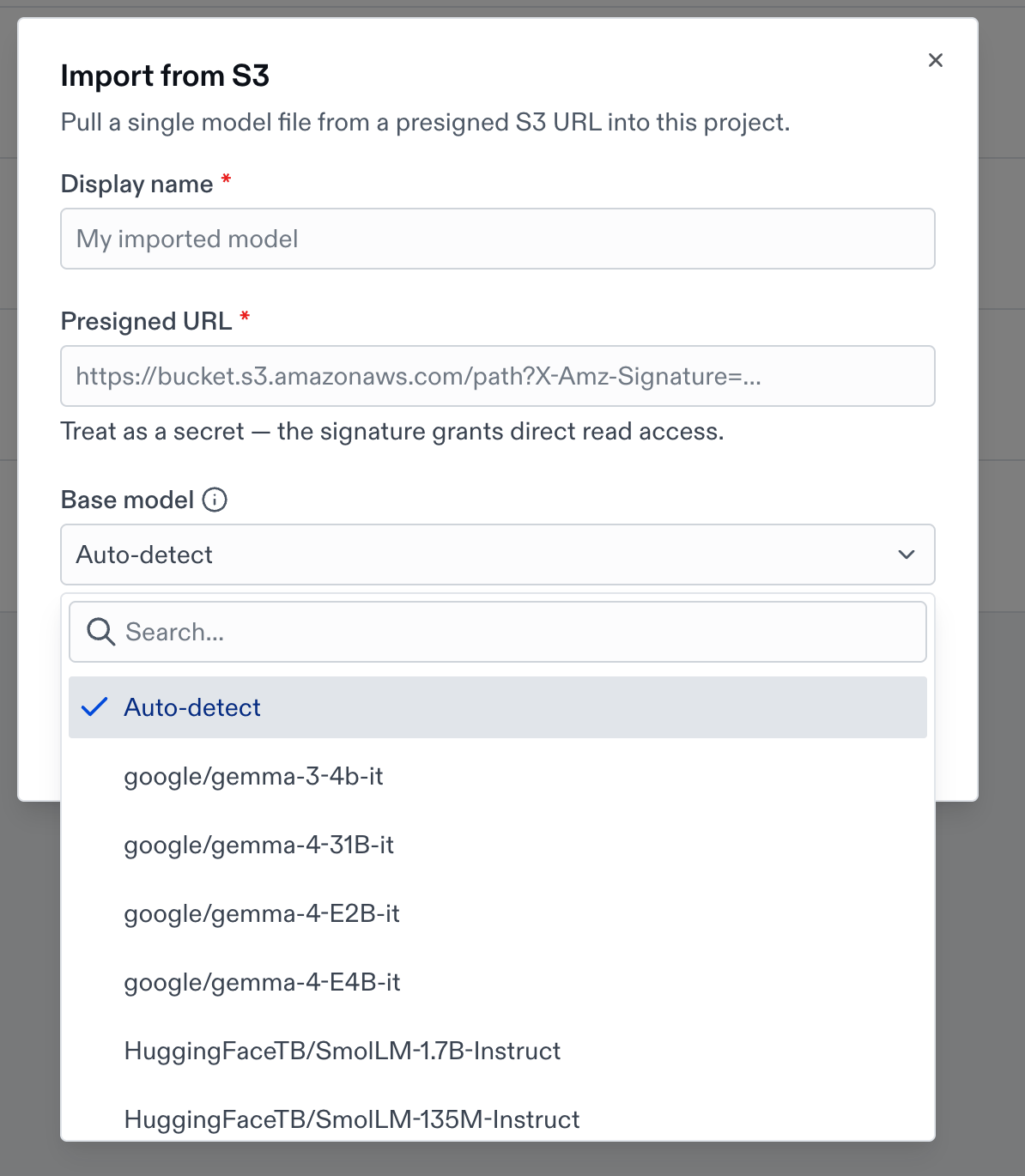 If you fine-tuned a model, the base model is the original model you started from, not your fine-tuned checkpoint.
***
## AFTER IMPORTING
HuggingFace and S3 imports run in the background. You'll see a confirmation that the import has started, and the model appears on the **Models** page once it finishes. Larger models take longer to copy in.
***
## USING YOUR IMPORTED MODEL
Once imported, your model works anywhere a custom model does:
Select your imported model as the model under test and score it with your evaluators.
Serve your imported model as a live API endpoint with hosted inference.
***
## IMPORTING WITH THE OUMI AGENT
You can also import a model by asking the Oumi Agent. Tell it which model you want to bring in, for example "import `meta-llama/Llama-3.2-1B` from HuggingFace," and the Agent walks you through the import and can continue straight into evaluation or deployment.
If you fine-tuned a model, the base model is the original model you started from, not your fine-tuned checkpoint.
***
## AFTER IMPORTING
HuggingFace and S3 imports run in the background. You'll see a confirmation that the import has started, and the model appears on the **Models** page once it finishes. Larger models take longer to copy in.
***
## USING YOUR IMPORTED MODEL
Once imported, your model works anywhere a custom model does:
Select your imported model as the model under test and score it with your evaluators.
Serve your imported model as a live API endpoint with hosted inference.
***
## IMPORTING WITH THE OUMI AGENT
You can also import a model by asking the Oumi Agent. Tell it which model you want to bring in, for example "import `meta-llama/Llama-3.2-1B` from HuggingFace," and the Agent walks you through the import and can continue straight into evaluation or deployment.