

WHAT FAiE CAN DO
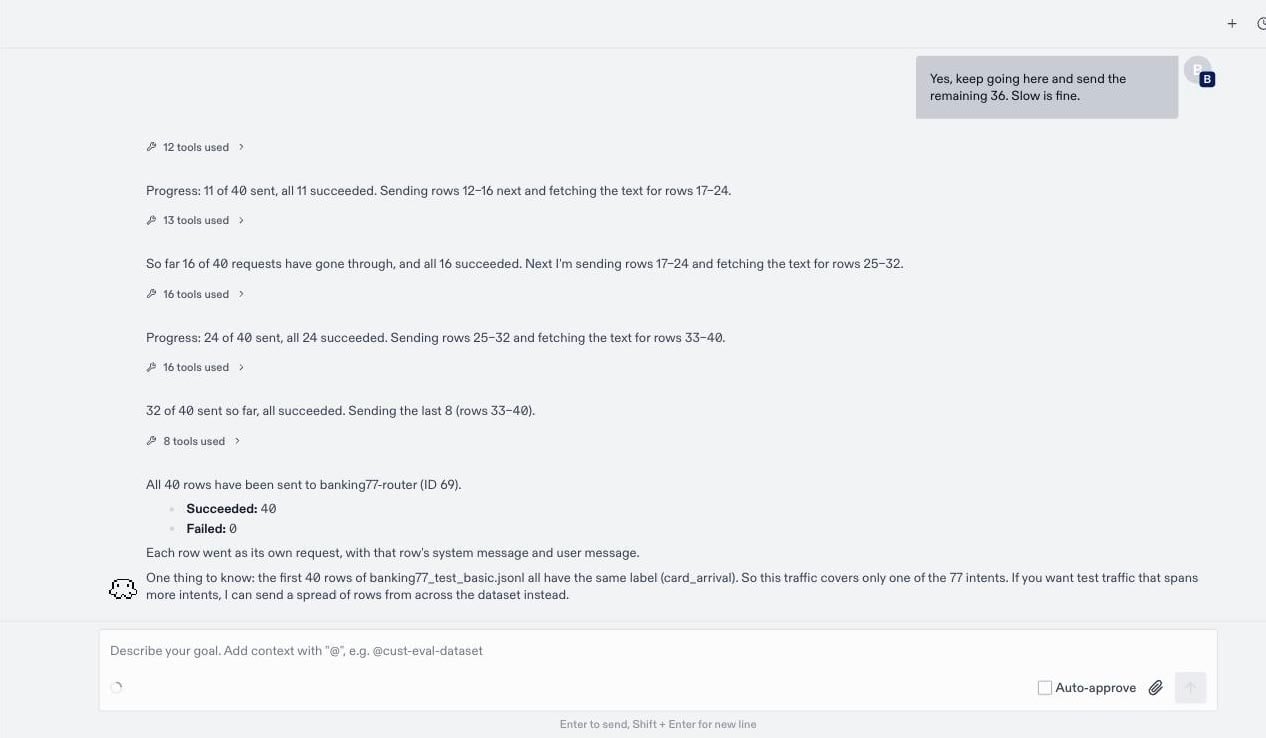
FAiE uses your project as context. It can list resources, compare evaluation results, explain why a job failed, and chart metrics in the conversation. For more requests, see the Prompt library.
WHAT FAiE CAN’T DO
- Upload or import files: FAiE links you to the page that uploads or imports data.
- Operate the Playground: FAiE can tell you what to compare, but you run the comparison yourself.
- Manage billing, roles, or API keys: Only inviting people is available in chat. FAiE never accepts an API key typed into a conversation.
- Resume a failed evaluation: A failed evaluation must run again.
WHERE TO USE FAiE
- Ask FAiE: Click
Ask FAiEin the sidebar for a full-page conversation. - Overview page: Type a request in the box at the top of the project’s Overview page.
- Side panel: Click the FAiE icon at the top right of a page to chat while you work.
- Builder forms: Some forms have a FAiE banner. Describe what you want, and FAiE fills in the form for you to review.
@ in the message box to point FAiE at a specific resource, such as @cust-eval-dataset.
APPROVE FAiE’S ACTIONS
FAiE asks you to approve an action before it runs anything with cost or side effects:- Starting a job, such as training, an evaluation, synthesis, or failure mode analysis
- Creating a deployment or a monitor
- Deleting a resource
- Exporting inference logs
- Inviting someone to the organization
- Calling a tool implementation that sends a request to your endpoint
Auto-approve below the message box. The setting applies to the current project in your browser. Leave it off while you are learning what FAiE does, because approved jobs start right away and bill as they run.
CONVERSATIONS
FAiE keeps each conversation, so you can return to it later. On the Ask FAiE page, click the clock icon to open earlier conversations, and click+ to start a new one. The menu at the top right copies or deletes the current conversation.
A long task can pause after many steps. Send a message such as “continue” to let FAiE keep going.