

SET A SYSTEM PROMPT
Click the gear icon in a panel’s header to open System Prompts. The dialog shows one text box for each open panel.- A fine-tuned model performs best with the system prompt it was trained on. Use that prompt when you compare a fine-tuned model with a base model.
- Leave a box empty to send no system prompt.
- Click
Apply to allon a panel’s box to copy its text to every panel.
Update to apply the prompts. A new system prompt applies to every later request in the panel, including the conversation history it sends.
SET SAMPLING PARAMETERS
Click the sliders icon in a panel’s header to open Model Parameters for that panel.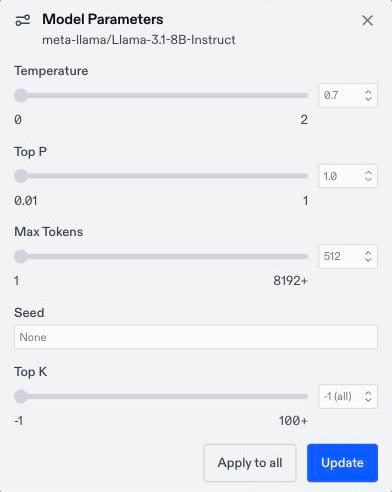
The dialog shows only the parameters that the panel’s model accepts:
Leave a field empty to use the model’s default. Click
Update to apply the parameters to this panel, or Apply to all to copy them to every panel. When you apply to all, each panel drops the parameters its model doesn’t accept and adjusts values to fit its model, so one strict model doesn’t break the comparison.
LET THE MODELS CALL TOOLS
Tools show how each model behaves as an agent. You can see whether it calls the right tool with the right arguments, and how it uses the result.- Click
Tools, and select an implementation for each tool the models may call. - Click
Update. The button shows how many tools are selected, and the tools apply to every panel. - Send a prompt that needs a tool.
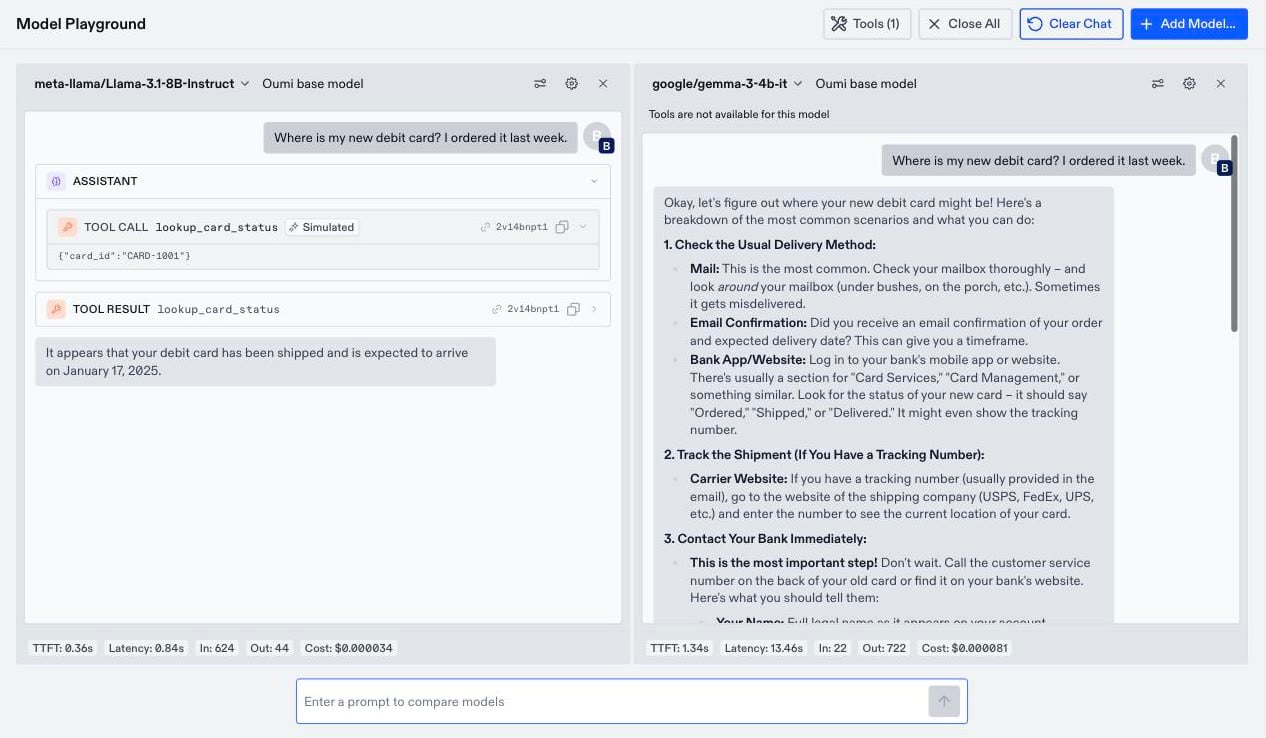
- Interactive tools: An interactive implementation asks you for the answer. Type the reply in the card that appears in the panel. If you skip it, the model reads that the user did not answer.
- Long tool loops: A model that keeps calling tools stops after several steps and shows
Continue. Click it to let the model keep going. - Cost: Each tool step is a separate model request, so a turn with tool calls costs more than a plain answer. Simulated implementations are also billed as inference.