

THE QUALITY TESTS
REVIEW THE RESULTS
- On the Datasets page, click the status in the Quality Tests column, such as
3/5 Tests Passed. You can also open the dataset and click the Quality Tests tab. - Expand a test to see the rows that failed it and the reason for each failure.
- Click a row to open the conversation.
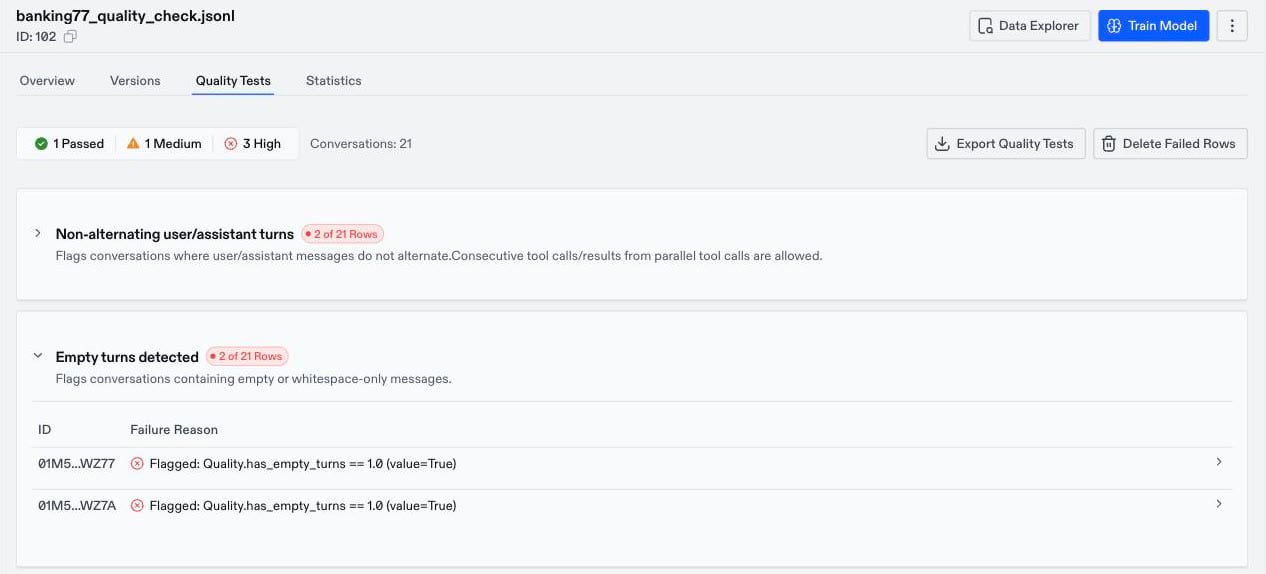
Export Quality Tests and choose JSONL or Parquet.
STATISTICS
The Statistics tab summarizes the dataset as a whole. For each metric, such as tokens per row, turns per row, and tool turns, it shows the minimum, median, maximum, and total. Use it to check that the dataset matches what you expect, such as the number of turns in a multi-turn dataset, or the token count against your model’s context window.REMOVE FAILED ROWS
- On the Quality Tests tab, click
Delete Failed Rows. - Select the tests whose failed rows you want to remove.
- Choose where to save the result:
Save to New Datasetcreates a separate dataset without the failed rows, and leaves this dataset unchanged. Choose it when evaluations or training runs use this dataset and should keep using the original.Delete Rowsremoves the rows in a new version of this dataset. Oumi runs the quality tests again on the new version.
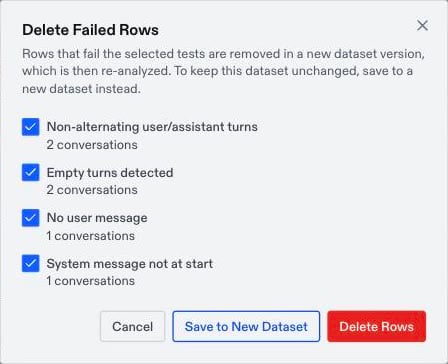
Delete Failed Rows appears only on the latest version. Delete Rows keeps the earlier version, so you can restore it if you remove too much.