

Create Evaluator, and choose the type. To save it, click the Save icon, enter a name, and click Save Evaluator. See Manage evaluators for editing and versions.
CREATE AN LLM EVALUATOR
An LLM evaluator checks one quality, such as accuracy or tone. You define the judgments it can return, the instructions it follows, and the judge model that runs it. To have FAiE draft the evaluator, click the FAiE banner at the top of the form and describe what you want to measure.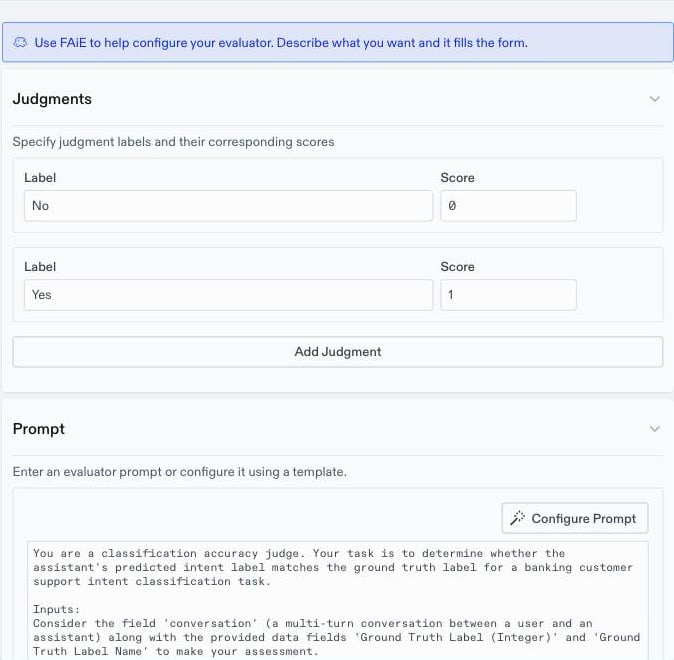
JUDGMENTS
Judgments are the outcomes the judge can return, each with a score. ClickAdd Judgment to add one, and give it:
Label: The name of the outcome, such asYesandNo, orCorrectandIncorrect. This is what the judge returns.Score: A number from0to1, where1is the best outcome.
1 and 0, for a pass or fail check. Use more labels for a graded check, such as High quality = 1, Acceptable = 0.5, and Poor = 0. A row passes when its score is above one half, so Acceptable counts as a failure here. To count it as a pass, score it higher than 0.5.
The form starts with True and False. Use the labels your prompt asks the judge to return.
PROMPT
Write the judge’s instructions in thePrompt box. Say what the judge should check, which label to return in which case, and how to handle borderline cases. The judge sees the conversation, and any data fields you add.
To build the prompt from structured fields instead, click Configure Prompt. Fill in the sections, and the Preview shows the composed prompt as you type.
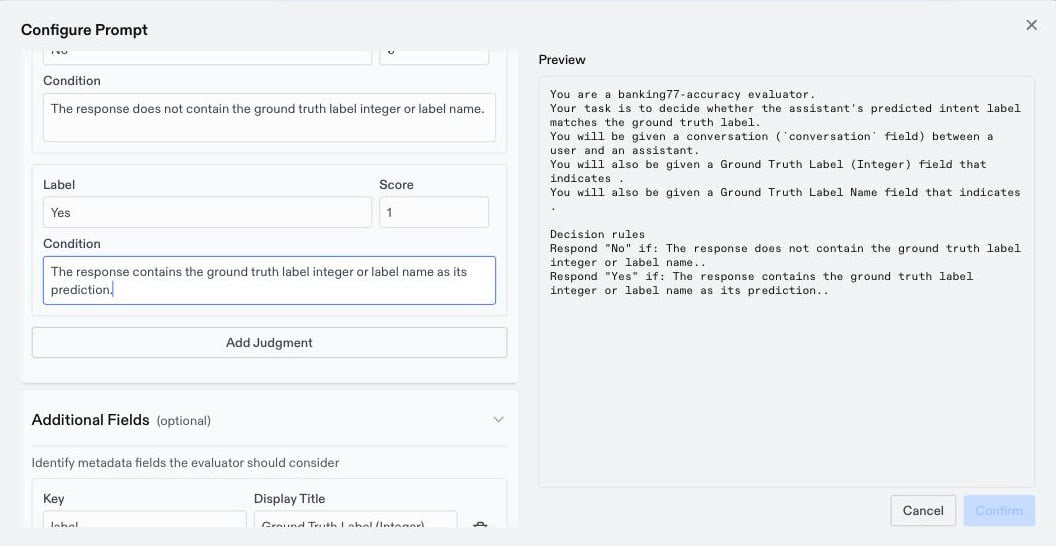
- Identity: The evaluator’s
Nameand a one-lineTask Description. - Judgment Conditions: A
Label,Score, andConditionfor each outcome. The condition tells the judge when to return that label. - Additional Fields (optional): Metadata fields the judge should see, each with a
Descriptionof what the field contains. - Evaluation Criteria (optional): Specific rules the judge should apply, such as a required format.
- Examples (optional): Worked cases, each with a
Judgmentand theReasoningbehind it. Add examples for borderline cases, because that is where judges disagree most.
Confirm, Oumi replaces the whole Prompt box with the composed prompt, and copies the labels and fields into Judgments and Data Fields. The dialog doesn’t load an existing prompt, so confirming it on a saved evaluator discards any prompt you wrote by hand.
MODEL SETTINGS
Specify the model and settings used to calculate the score according to the instructions. By default, the judge does not see content inside<think> tags. Check Include thinking tokens in response? to show it. In the API, this is responseFilterMode (EXCLUDE_THINKING by default, or THINKING_AND_RESPONSE).
The judge model must be a hosted model. It is separate from the model under evaluation, so choose a strong model that is not the one you are testing.
DATA FIELDS
The judge always sees the full conversation: each user message, each assistant message, and each tool call and tool result. Use this section to show the judge more context.Conversation system message- Check this box to show the judge the system message of each conversation. Use it when a criterion depends on the assistant’s instructions, such as a policy it must follow. In the API, this isincludeConversationSystem(falseby default).Metadata fields- ClickAdd Fieldto show the judge a value from each row’s metadata. Give each field aKeyin the dataset’s metadata, such asground_truth, and aDisplay Titlefor the judge.
CREATE A RUBRIC EVALUATOR
A rubric evaluator checks several criteria in one judge call. Each criterion gets its own label, score, and explanation, and the criterion scores combine into one overall score for the row. The results show exactly which criterion failed, instead of one score for everything. Use a rubric to check several behaviors of the same conversation, such as the ones in Judging tool use and conversations.SYSTEM INSTRUCTION
Tell the judge what it is assessing and how to approach it. For example: “You review conversations between a support assistant and a customer. Judge each criterion on its own.” Oumi adds the criteria and the response format for you.CRITERIA
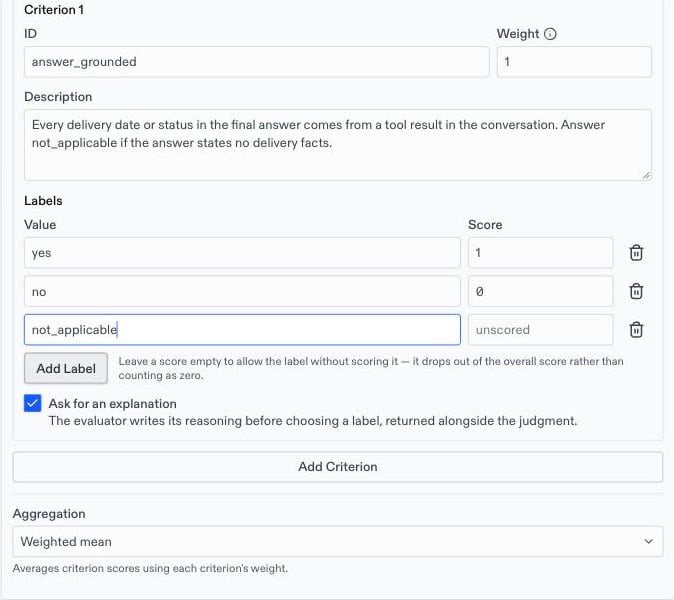
ClickAdd Criterion for each behavior you want to check, and fill in:
ID: A short name, such asgrounded. It names the criterion’s column in the results.Description: The question the judge answers for this criterion. Write it so that the conversation alone can decide it.Labels: The values the judge can return, each with aScore.Weight: How much the criterion counts in the overall score, relative to the others.Ask for an explanation: The judge explains its reasoning before it picks a label. Keep it on, because the explanation shows why a criterion failed.
LABELS AND SCORES
The judge picks exactly one label for each criterion. Give each label a score from0 to 1:
- Pass or fail:
yes=1,no=0 - Graded:
correct=1,minor_error=0.5,wrong=0 - No score: Leave the score empty for a label that should not count, such as
not_applicablewhen the situation the criterion checks never came up. An unscored label is left out of the overall score instead of counting as0.
AGGREGATION
Choose how the criterion scores combine into the row’s overall score:
Only criteria with a scored label count toward the overall score.
DATA FIELDS AND MODEL SETTINGS
These work the same way as for an LLM evaluator. See Data fields and Model settings. The judge answers every criterion in one response, so allow enoughMax Tokens for all of them.
TEST WITH PREVIEW
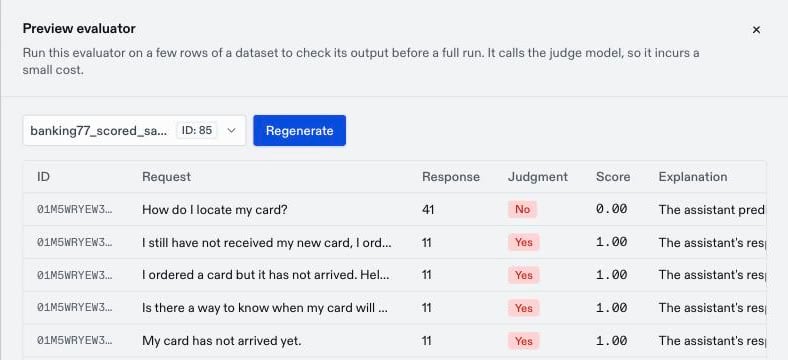
Before you run a full evaluation, check that the judge behaves as you intended. Open a saved LLM or rubric evaluator, clickPreview, choose a dataset whose rows include responses, and click Preview evaluation. Oumi runs the judge on the first rows and shows the judgment, score, and explanation for each one.
JUDGING TOOL USE AND CONVERSATIONS
When the model under test calls tools, a correct final answer is not enough. Judge the process that the conversation shows. Consider the following behaviors, in addition to ordinary correctness and tone:- Tool selection: The model used the right tool, and looked information up before it stated it instead of answering from memory.
- Argument grounding: Every ID and parameter that the model sent to a tool comes from the user or from an earlier tool result. The model did not invent values.
- Answer grounding: Every fact in the model’s answer has a tool result behind it, unless the model states its uncertainty. This is usually the largest class of failures.
- Efficiency: The model did not repeat identical calls. It called a tool again only when a constraint changed or the user asked something new.
- When not to call: The model declined out-of-scope or unsafe requests directly, and did not refuse a harmless request that looks similar.
- Error handling: After an empty or failed result, the model retried with a changed query before it told the user that something does not exist. It did not loop.
- Faithful self-report: The model did not claim an action that it never took, or describe an outcome before the tool call returned.
- Conversation management: The model asked a question only when the request was truly underspecified. Otherwise it proceeded and stated its assumption. It covered every part of a multi-part request and recognized when the task was done.
not_applicable label with no score. LLM judges are least reliable on answer grounding when the user pushes back, so write those criteria most precisely.
Also check tool activation. A conversation can pass every criterion and still never call the tool that the row was built to exercise.